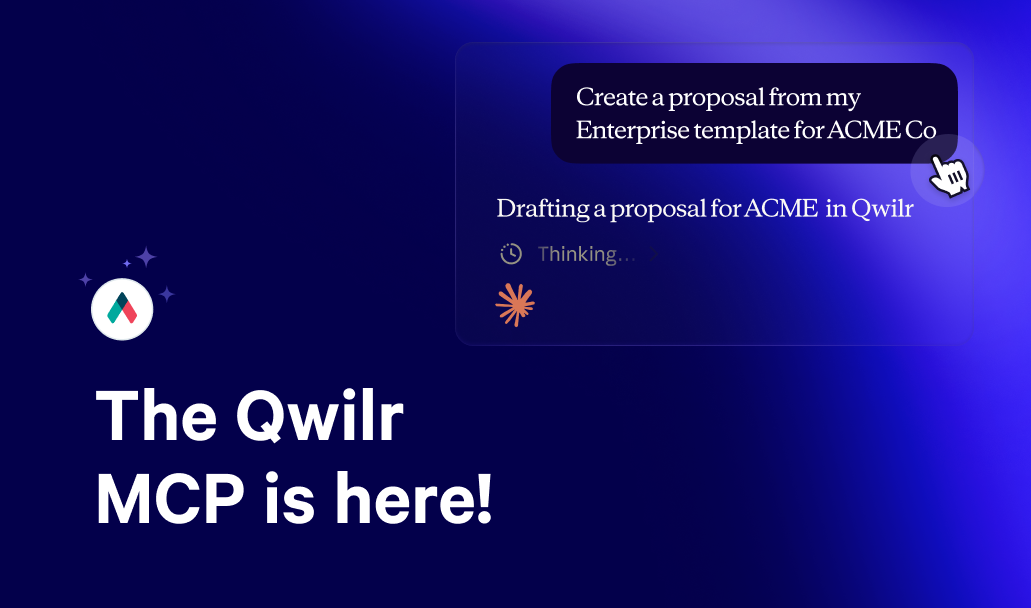
Qwilr is now listed in the Claude Connectors Directory and the ChatGPT Plugins directory!
It’s easier than ever to find Qwilr inside the AI tool you already use, connect in a few clicks, and manage your proposals without leaving the chat.
What's an MCP?
MCP is short for Model Context Protocol. It's a standard way for AI tools to connect to the apps you already use.
Think of it as a direct line between your AI tool and Qwilr.
Once you connect, Claude or ChatGPT can look things up in your Qwilr account and take actions for you. It only does that after you've logged in and given permission, and only within your own account.
What's changed
Qwilr MCP launched earlier this year, but getting set up meant finding our server URL and adding a custom connector by hand.
Now Qwilr is an official listing in both the Claude and ChatGPT directories.
Search for Qwilr, click connect and log in with your usual Qwilr details. You won't need a server URL or an API key.
Using a different AI tool? No problem. You can still connect the Qwilr MCP in a couple of extra steps using our help guide.
What you can do once you're connected
- Get the full picture on your deals: ask which proposals have buyers engaging, which have gone quiet, and which sections get the most attention.
- Create proposals from templates: describe the deal in plain language and your AI tool fills in the template for you.
- Share and publish: set a page live, or grab the live link or PDF link to send to your buyer.
- Connect your other tools: pull deal details from your CRM into a new proposal, or set up a weekly Slack message flagging deals that need attention.
- Keep things tidy: archive, restore or delete pages you don't need anymore.
Here’s a couple of prompts for you to try out:
- "Who's viewed the [proposal name], and how long did they spend on the pricing section?"
- "Which deals should I focus on this week?"
- “Create a page for [company name] from [template name]”
- "Archive all of my declined pages from last year."
Why it matters
- Setup takes seconds, so more of your team will use it.
- Reps stay where they already work instead of switching between tabs.
- There's less admin. Repetitive tasks become a single prompt.
How to get started
In Claude (web or desktop):
- Go to Settings > Connectors.
- Search "Qwilr" and select Qwilr MCP.
- Click Connect, then log in with your Qwilr account and allow access.
In ChatGPT:
- Go to Plugins (or chatgpt.com/plugins).
- Search "Qwilr" and select it.
- Click Install plugin, then log in with your Qwilr account and allow access.
Using a different AI agent? See how you can connect here.
Got questions? Reach out to help@qwilr.com.
Good to know: Qwilr MCP is available on all plans, including legacy Business and Enterprise.
Creating pages from templates is only available on the new Starter, Growth and Scale plans, and it uses document automation credits.
About the author

Guy Hall|Head of Product Marketing at Qwilr
Guy leads product marketing at Qwilr – tackling things like positioning, messaging, sales enablement and more. Guy has a background in content and communications, and has worked across a variety of industries including tourism, telecoms and tech.