

Personalized sales proposals close at higher rates. But it’s amazing how little deal context actually makes into what gets sent.
Reps will have great calls, where their buyer shares exactly what matters to them, what’s holding them back and raise specific objections. Exactly the kind of details that win deals.
But then the proposal that goes out the door, looking like it could've been meant for anyone.
And we get it! Personalization takes time that reps don’t always have.
That’s where our new Gong integration for our AI-powered Smart Proposal Engine comes in.
What’s new
You’ve been able to copy-and-paste your call transcripts into the Smart Proposal Engine since we released it.
But no one likes switching between tabs to copy info across.
Now, you can connect Gong and natively search for a call transcript, or multiple transcripts, without leaving Qwilr.
What can you do with your transcripts
Connecting your Gong calls directly to Qwilr, you can now use AI to comb through your transcripts and pull out deal details to fill template variables or drive conditional logic that determines what content shows up in your proposals.
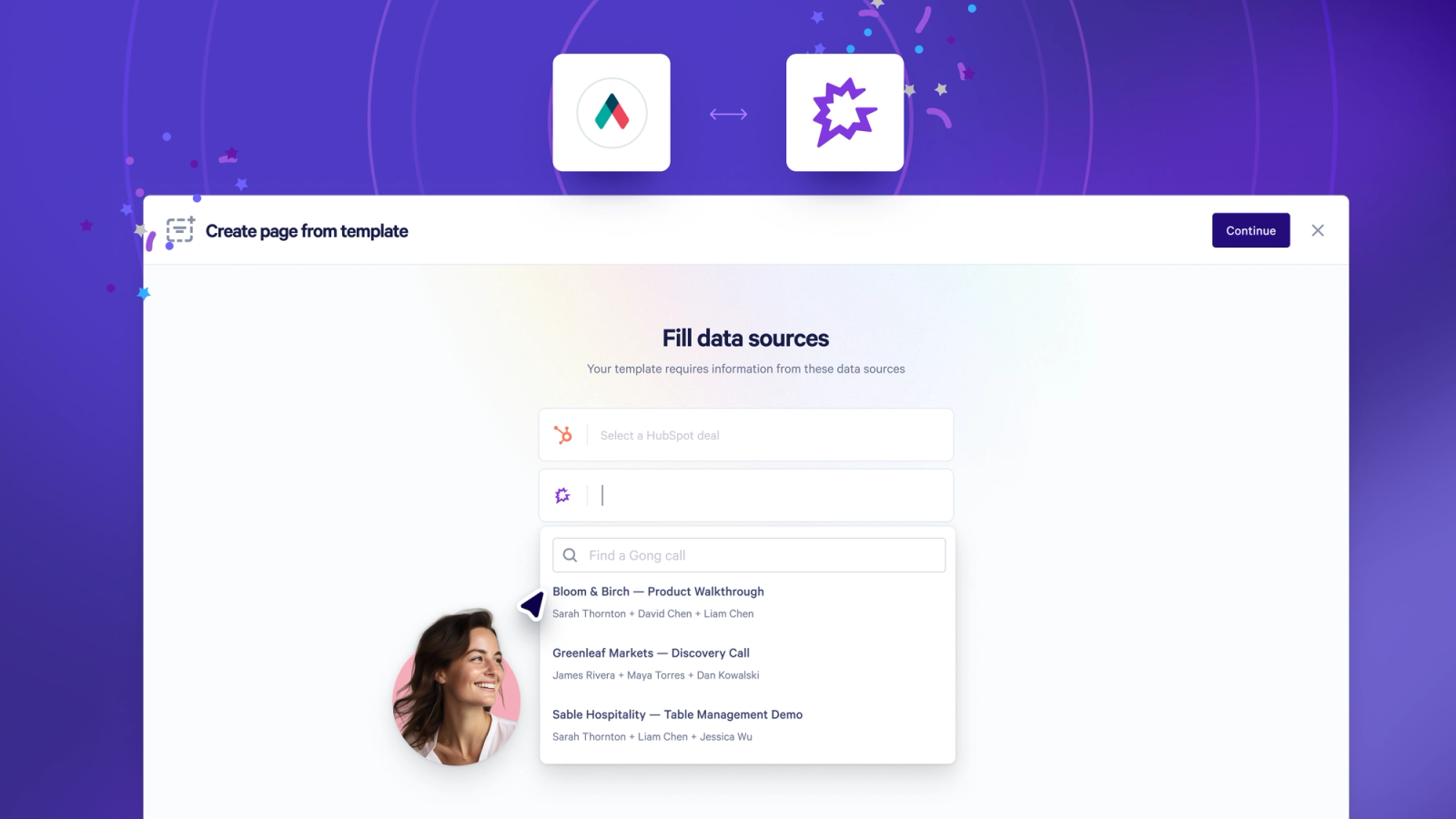
Personalizing template variables
This could be as simple as replacing placeholders in your proposals, like filling the {Company Name} variable with the buyer’s actual company name.
Or you can take this further.
For example, you could prompt the Smart Proposal Engine’s built-in AI with something like: “Based on the connected Gong call, write me a 3-line executive summary that pulls out the specific pain points that my buyer mentioned and cover how we solve them”.
You’re left with a highly tailored executive summary that speaks specifically to the problem that your buyer is trying to solve, without having to dig back through your notes or re-watch your calls.
Reps spend less time personalizing proposals, and buyers have a better, more personalized experience.
Driving conditional logic
You can use the context from your Gong calls alongside conditional content rules to automatically shape your proposal, so that it’s more relevant to your buyer.
You start by setting up rules once, using “if this, then that“ logic to determine what content shows up. For example, if the buyer’s industry is real estate, show case studies from your other real estate clients.
After that, whenever you link a Gong call to your template, AI analyses the transcript against these rules. If it picks up on one of these rule triggers, then the relevant content shows up automatically.
Again, this is a huge time saver for reps (since they don’t have to manually edit a proposal so that it speaks to their buyer), but this is also a big win for sales leaders.
Setting up these rules, and knowing that they’re being driven by their reps’ actual calls, means that leaders know that reps are all following the same process and won’t include the wrong content.
Why this matters
- Reps can work faster, with less effort. No more switching between Gong and Qwilr to build a proposal. It's all done in one place.
- Buyers receive more compelling proposals. Your proposal reflects what the buyer actually said, right down to which sections show up, not a generic template.
- Opportunities for errors are reduced. Pulling straight from the transcript means no typos from manual copying, and no context dropped along the way.
- Consistency across your processes. Reps don't have to remember which objection-handling content to pull in. Qwilr surfaces it based on the real conversation.
Getting started
Gong only needs to be connected once, by one admin, for your whole Qwilr account.
Step 1. In Qwilr, go to Settings → Integrations and find Gong.
Step 2. Select Enable Gong. A Gong window opens for you to authorize Qwilr.
Step 3. Sign in to Gong as a Technical Administrator and approve the requested permissions.
Step 4. You will be returned to Qwilr, and Gong will show as connected.
Somethings to know
The first stage of our Gong integration, with more news coming soon!
This is available now for Scale customers with Gong connected.
Worth noting, Gong processes transcripts asynchronously, so if you search for a call right after it wraps, you might see a "not available yet, try again shortly" message. Give it some time and it'll be there.
About the author

Guy Hall|Head of Product Marketing at Qwilr
Guy leads product marketing at Qwilr – tackling things like positioning, messaging, sales enablement and more. Guy has a background in content and communications, and has worked across a variety of industries including tourism, telecoms and tech.