Want to organize your Qwilr account, but don’t want to give everyone access to your pages?
We’ve introduced new folder permissions, giving you flexibility over who can view and edit the folders in your account, and the pages within them.
(This feature is rolling out progressively across accounts. Get in touch with our Support Team if you'd like to opt in.)
What’s new?
Previously, when you put a page into a folder, it was visible to everyone in your account.
You told us that this could make it difficult to properly organize your pages, while still keeping sensitive content private.
That’s where these new permissions come in…
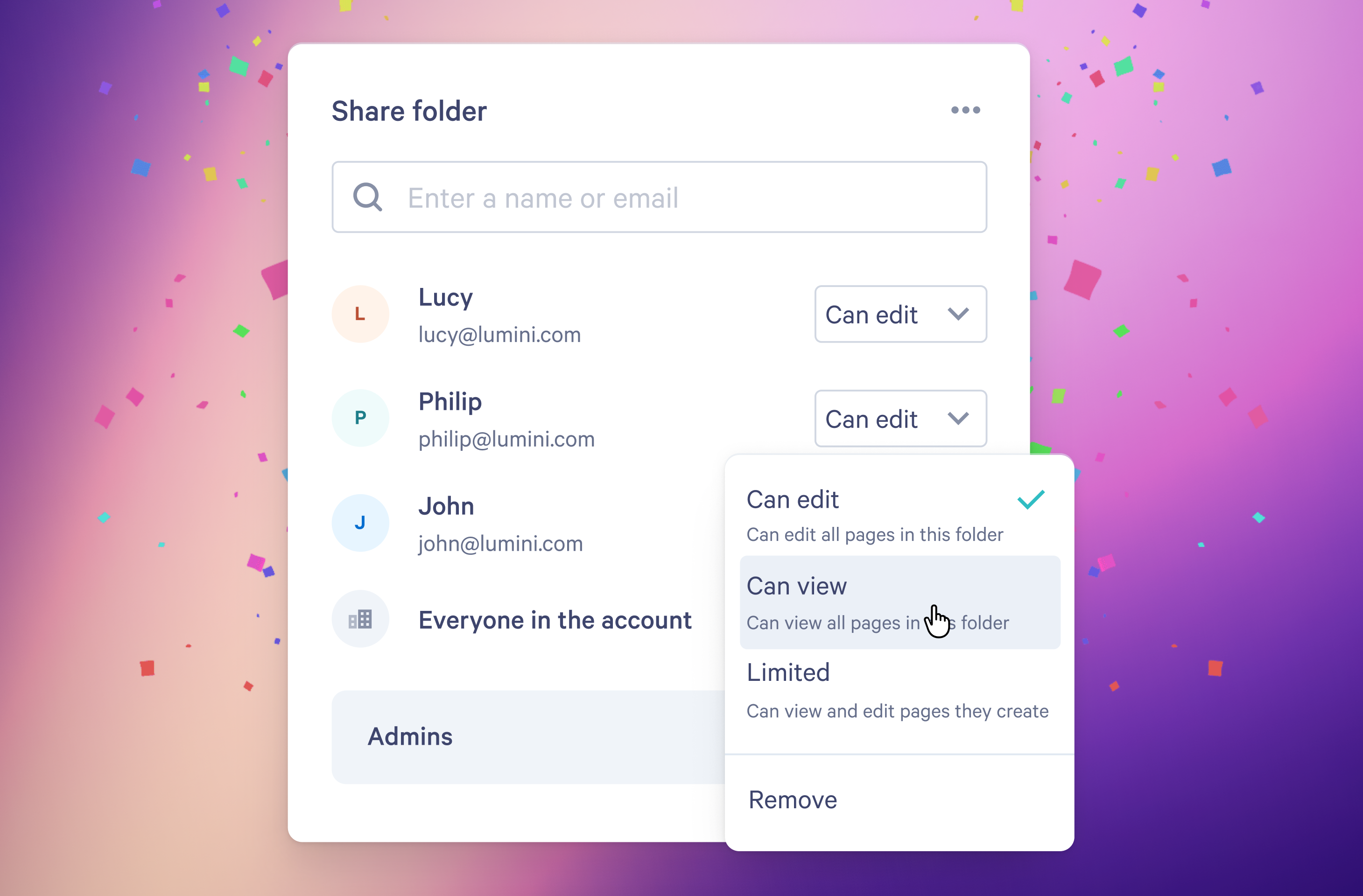
You now have the ability to manage access to folders, via the new Share folder menu, helping you organize your account while maintaining control over who sees what.
You will have the choice of the following access levels:
- Can edit – You can share the folder, and edit all pages within it
- Can view – You can view all pages in the folder
- Limited – You can only view or edit your own pages
Creators can still create, rename, move and delete folders, but only if they have edit access to everything in that folder.
Admin access to pages will not change. Admins are able to see all folders and pages in the account by default.
Why does this matter?
You’re now able to…
- Control who sees certain pages
- Organize your pages in a way that matches your processes
- Save time searching for pages
- Reduce unwanted edits to your proposals
For example, if your team works across multiple regions, you can keep your US team’s pages hidden from the folks in Europe.
It’s all about making your Qwilr setup work for your team.
What do you need to do?
As a default, all existing folders and the pages within them, will remain visible and editable by everyone in your account, as they were previously (i.e. their status will be “Everyone in the Account" > Can edit)
We recommend reviewing your folders’ permissions to make sure that the right people have access to the right content.
Changes to CRM Blueprint Templates
If you’ve been creating pages using Blueprint templates via HubSpot, Salesforce or CSV, you’re going to see some changes in how your pages are organized.
Nothing will change with your content, just where they appear.
Previously, your Pages dashboard showed your Blueprint templates (the “Parents”) and, from these, you could view the pages that were created from these templates (the “Children”).
With this structure going away, you may want to re-organize your account.
Now, with this update, you’ll find…
- Templates in Library → Templates
- Pages individually listed in your Pages Dashboard (unless you move them into folders), or in the folder your Blueprint template used to live in
- An option to set a default folder for pages created from each template
With pages now showing up individually, we realise that your Pages Dashboard may feel a little cluttered, and we’d recommend sorting these pages into folders.
Got questions?
Our Support Team is here to help, or you can check out these help documents.
And, as always, if you have any feedback, we’d love to hear from you.
About the author

Guy Hall|Product Marketing Manager at Qwilr
Guy works on product marketing at Qwilr – tackling things like positioning, messaging, sales enablement and more. Guy has a background in content and communications, and has worked across a variety of industries including tourism, telecoms and tech.